
PVA now provide support for multiple languages, you can check PVA languages list here
How to create multi-language Bot : Basically you need to create a new Bot for each of the language which you want to provide support for example your customer base speaks French , English & German , so you will need to create 3 separate Bot for each of the languages.
While creating PVA Bot you can select the language for the Bot, which will also generate some of the sample topics like Welcome , greet, etc. in the language selected. You will notice that Once you create the new bot, it will have the content in the target language, including system topics and template user topics
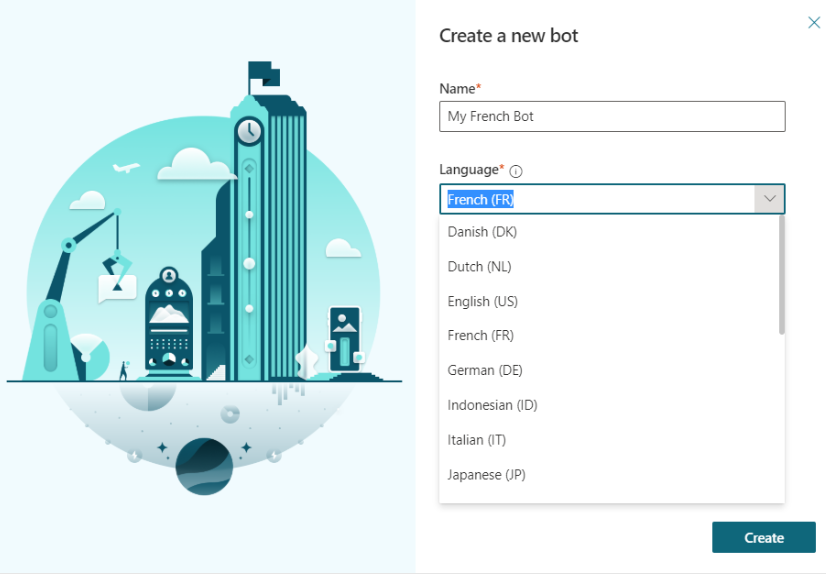
Once you design the PVA topics for different languages, you need to place this bot.
How to show language specific Bot (PVA) : There are different options available to show the language specific bot on Portal, if you are using Power Pages, you can determine the language by logged in user preferred language. If use is anonymous then you can use the locale value like browsing region to determine the language. Once the identification for the language is determined, you can design the power pages like it show specific language bot as per user’s preferred language.
In Power Page designer open the page where you want to place the Bot, you need insert multiple I-frames as per the languages
Steps:
- Navigate the Power Page designer
- Insert I-frame into specific section of the power page where you want to display the Bot
- Get the URL of the PVA Bot , by navigation to the PVA and select channel from the Manage option
- Set the I-frame URL to the PVA URL.
- Repeat the above steps for every language
- Open the code designer for the Iframe , which will be a Div HTML Control
- Modify the code to conditionally show the specific DIV on the page based on the user.new_userprefferedLangauge ( use your field name which stores user language in Dataverse)





 decodeDynamics
Leave a comment