
As a Solution Architect preparing to set up a Dynamics 365 CE on-premise environment, it’s crucial to understand the key concepts and engage with your Infrastructure Stakeholders early in the process. While you don’t need to be an expert in every networking or infrastructure aspect, having a broad awareness will enable you to guide your team and clients toward a successful implementation.
In today’s digital world, cloud-based applications are everywhere, and Dynamics 365 CE is no exception. However, there are times when an On-Premises version is needed—for example, to set up a temporary environment during a Dynamics 365 upgrade
This blog post aims to delve into the realm of best practices associated with setting up Dynamics 365 CE On-Premises infrastructure.
Overall Architecture
The following diagram provides a high-level overview of the Infrastructure Architecture.

So lets explore some of the key points from above diagram.
| Public Network | A public network is outside any security firewall, and it is publicly accessible and typically part of the global internet, this is a less secure network |
| Firewall | A firewall is a security mechanism, whether in hardware or software, that creates a protective barrier separating a secure network from untrusted ones |
| Network Load Balancers(NLB) | A network load balancer is a tool or software that spreads incoming network traffic with the help of different algorithms across multiple servers |
| Local Area Network (LAN) | A Local Area Network (LAN) is a network that connects computers and devices in a confined geographical area |
| Virtual LAN(VLAN) | A LAN can be virtually segmented into more logical partitions, which is known as a Virtual LAN (VLAN) |
| Active Directory Domain Services(ADDS) | ADDS is a Windows server role for managing user authentication and resource access in a Windows domain |
| Ports | Ports in networking are like specific addresses that devices use to talk to each other on the internet or a network. |
| Always on Availability Group (AOAG) | Always On Availability Groups in SQL Server provide high availability and disaster recovery solutions |
| App Layers | In an on-premise Microsoft Dynamics CRM installation, the deployment process can be divided into distinct server roles, which include the Web Server, App Server, and Report Server, etc. |
| Port Types (TCP, UDP) | Transmission Control Protocol, is a fundamental communication protocol within the Internet Protocol (IP) suite UDP is a faster but less reliable communication protocol within the Internet Protocol (IP) suite |
Scaling Out Servers
Dynamics 365 CE allows to splitting out the server roles like Web , App, Reports. You might be wondering how many servers are required to set up a specific instance and in which scenario you should plan for a split of Roles between the servers.
There are no strict rules for this, it primarily depends on the importance of the environment. The diagram below outlines the minimum number of servers based on industry standards. However, you can always add more servers based on factors such as expected user activity, data volume, and performance requirements.
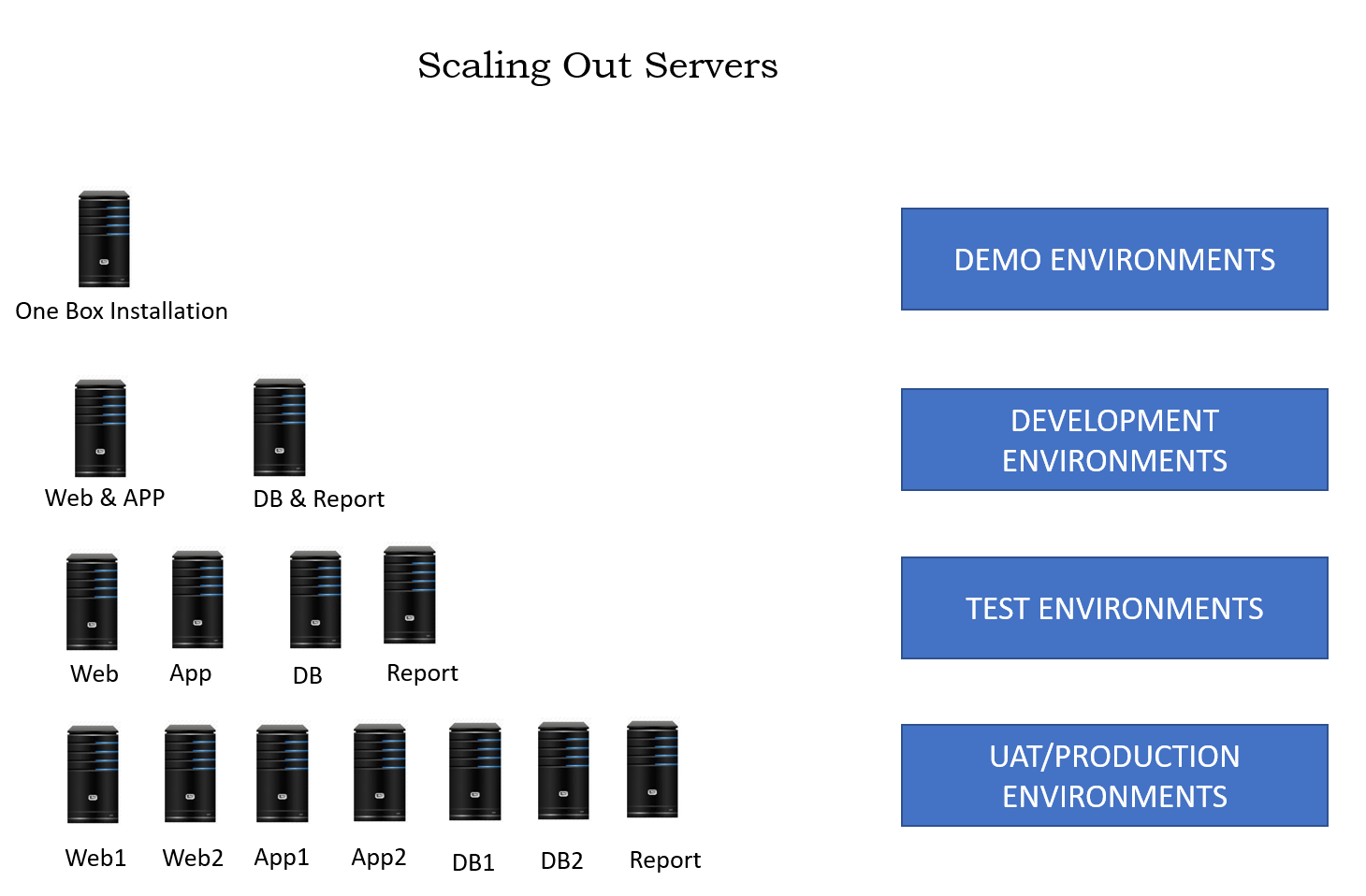
Split Server Roles
In Dynamics 365 Customer Engagement (CE), various server roles can be split out to distribute the workload and optimize performance. During Installation of Dynamics CRM on-premise you can choose the specific roles for the server.
Below is the breakdown of some common server roles in Dynamics 365 CE.
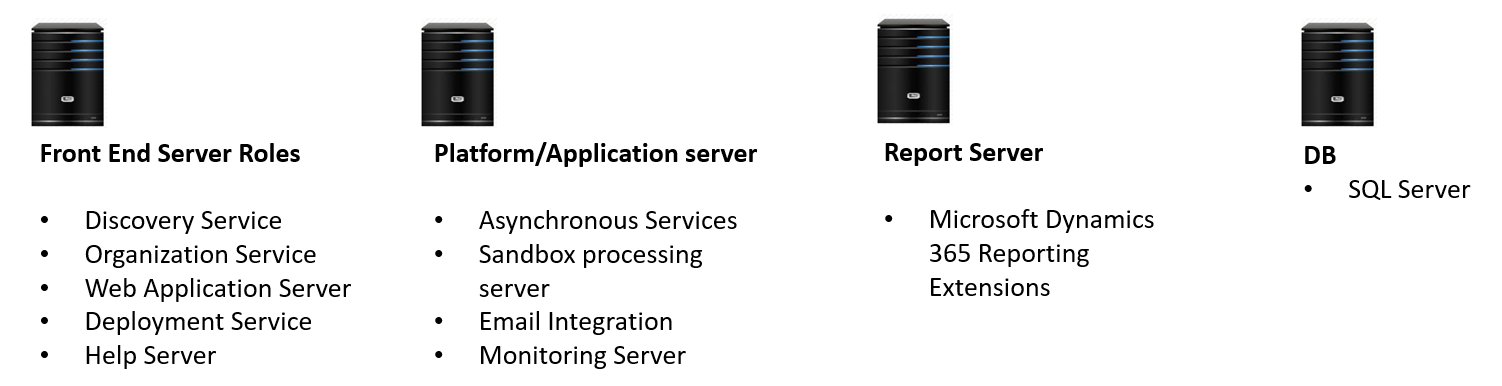
Key Communication Matrix/Port Openings
While setting up the servers, you will require the Port Opening between the servers over the network, below table explains the key port openings between the servers for seamless communication. Port opening are required for communications between the servers.
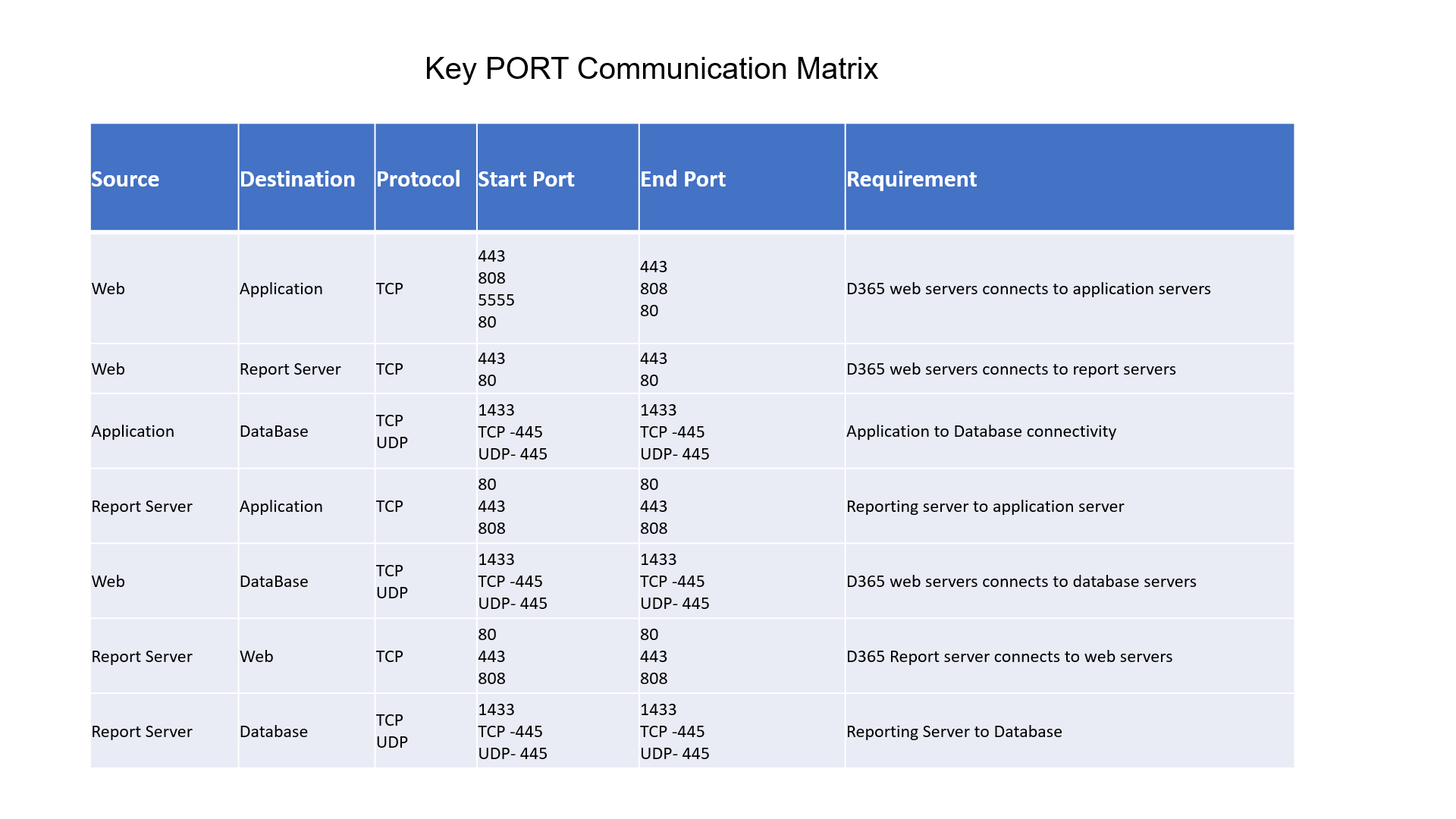
Each installation and implementation varies based on client requirements, security considerations, anticipated user loads, and availability demands. Select the installation approach that aligns best with your organization’s specific needs and objectives.





 decodeDynamics
Leave a comment